

Using Backups
How to create, browse, download, lock, and restore server backups on the Rogue Wave Hosting panel.
On this page 3
Backups take a full snapshot of your server files and settings so you can roll back safely after a bad plugin update, world corruption, or griefing incident. Backups are stored off-node and do not count against your server’s disk space.
Creating a Backup
-
Open the Backups page
Open your server in the Game Panel and click Files → Backups in the left sidebar.
The counter under the title shows how many backup slots you’ve used (for example,
1 of 5 maximum backups created), along with each snapshot’s size, file count, creation time, and lock state.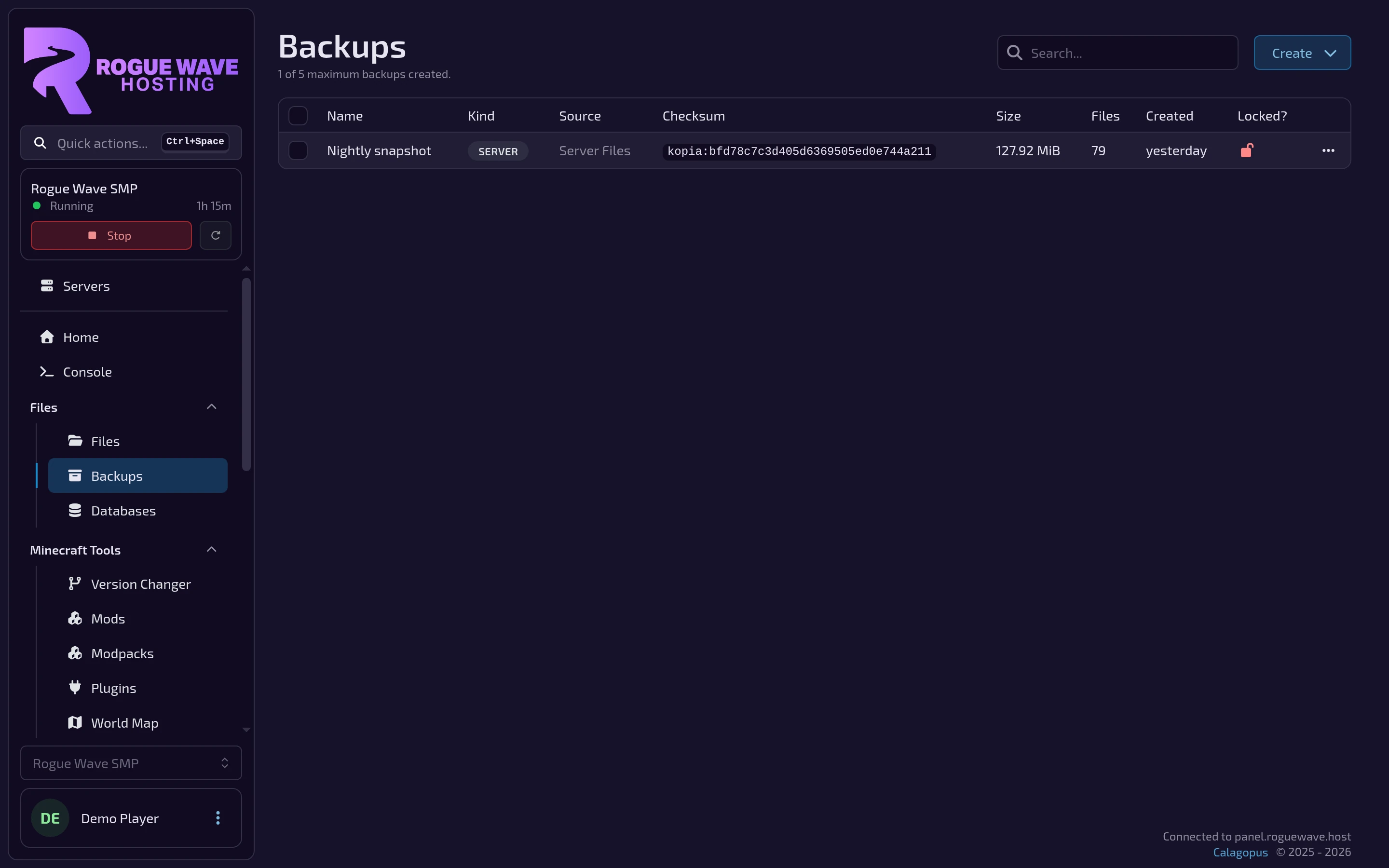
The Backups page showing existing snapshots and the Create menu in the top-right corner. -
Click Create → Create Backup
Click Create in the top-right corner and choose Create Backup (you can also choose Create Backup Group to bundle server files and databases together).
In the Create Backup modal:
- Name — Give the snapshot a clear label (for example,
Before 1.21.4 Update). - Ignored Files (optional) — Exclude bulky or temporary paths (one pattern per line, such as
logs/*orcache/*). Toggle Preview ignored files to verify what will be skipped before creating the backup.
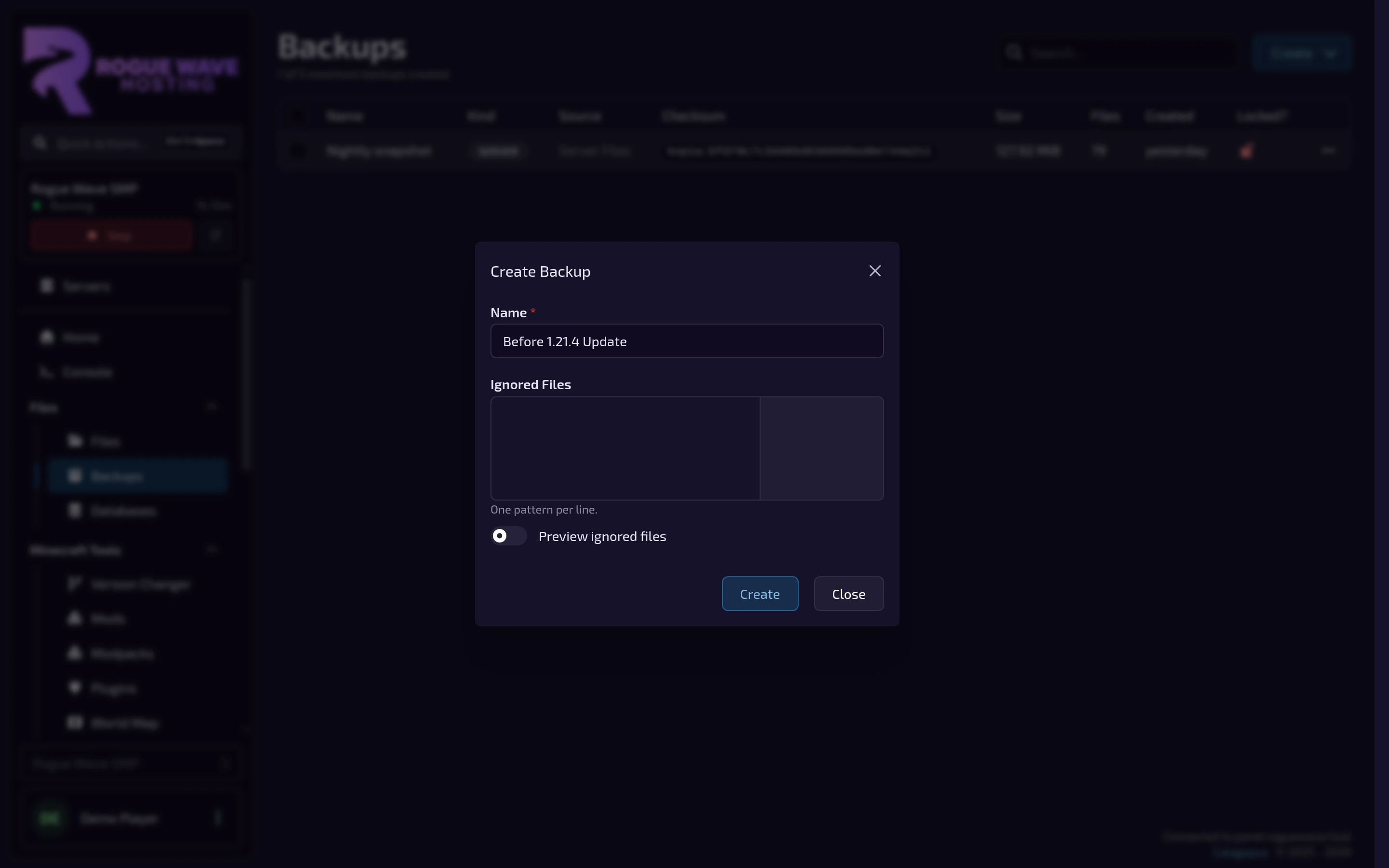
Naming a backup and optionally excluding paths in the Create Backup modal. Click Create. Your backup will run in the background and update with its final size and file count once finished.
- Name — Give the snapshot a clear label (for example,
Browsing, Downloading, and Locking Backups
Click the ... button on the right side of any backup row to see all available actions:
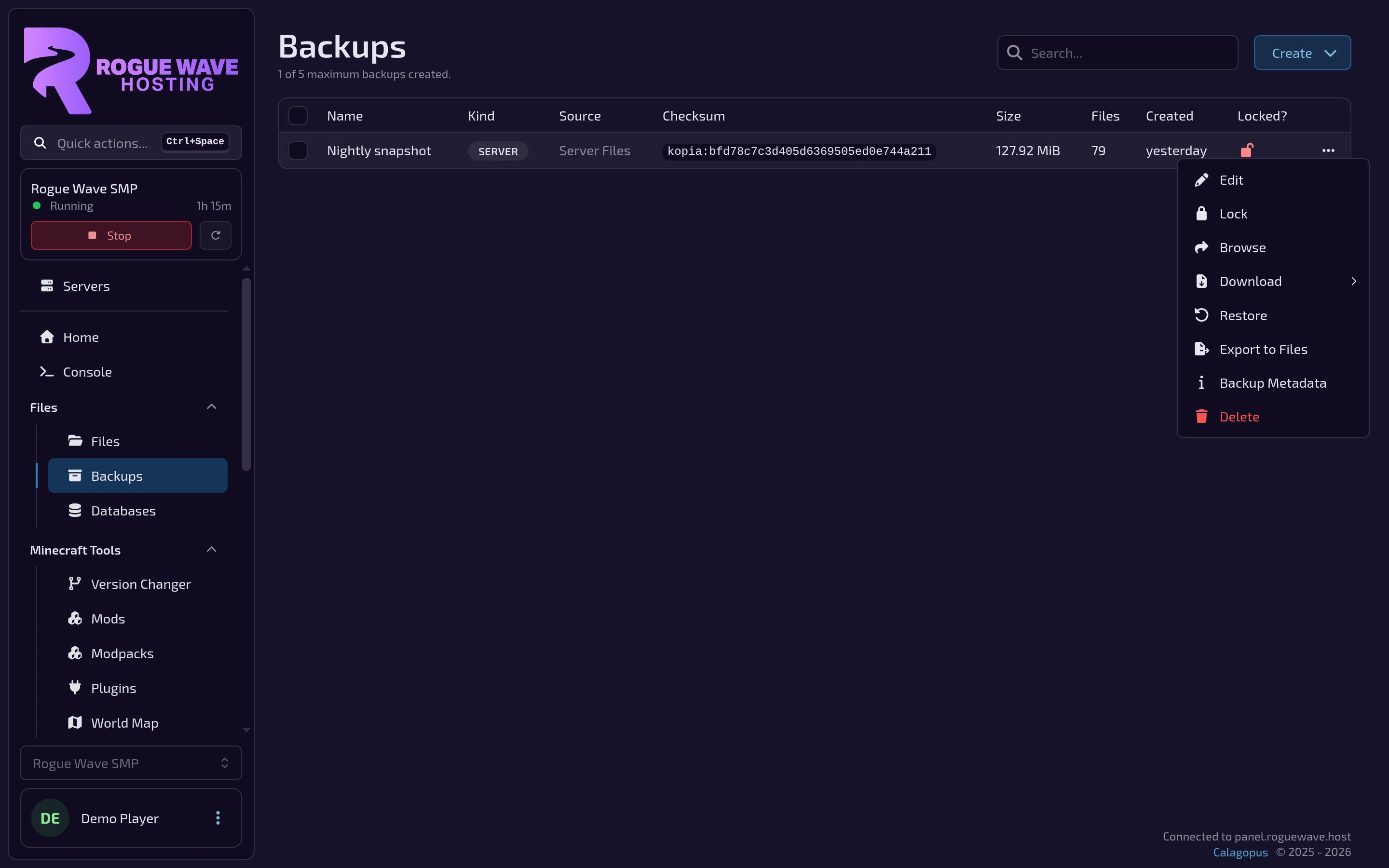
| Action | What it does |
|---|---|
| Edit | Rename the backup. |
| Lock / Unlock | Protects an important snapshot from being deleted manually or pruned by scheduled backups. Locked backups display a closed lock icon in the Locked? column. |
| Browse | Inspect individual folders and files inside the snapshot right in your browser without restoring the entire server. |
| Download | Download a copy of the backup archive directly to your computer. |
| Restore | Roll your server back to this snapshot (see below). |
| Export to Files | Place the backup archive directly into your server’s file manager. |
| Backup Metadata | View the snapshot’s technical metadata and captured configuration details. |
| Delete | Permanently remove the backup to free up a backup slot. |
Restoring a Backup
-
Choose Restore from the row menu
Click the
...menu next to the snapshot you want to roll back to, then click Restore. -
Pick your restore options
In the Restore Backup modal, choose how the restore should behave:
- Delete all files of this server before performing this action — Recommended when you want an exact, clean rollback with no leftover files from a broken update or removed mod. Leave it off to overwrite matching files while keeping newer unrelated files.
- Restore the startup command, image, and variables from this backup — Turn this on if you also want to revert startup settings, Java/Docker image changes, or egg variables to what they were when the snapshot was taken.
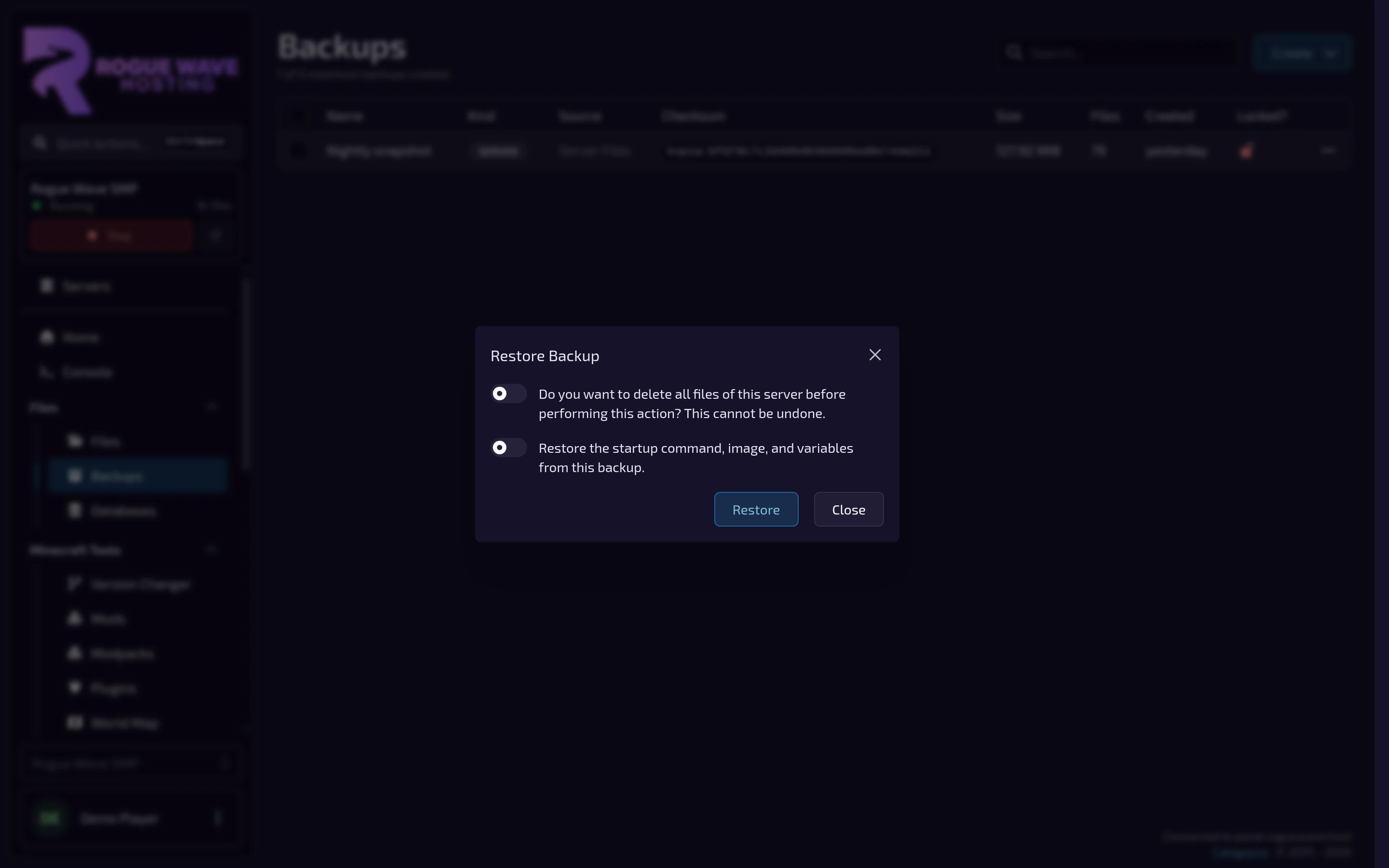
Restore Backup options for wiping existing files first and restoring startup settings. Click Restore to begin. Your server will stop automatically while files are restored.