


Using the Console & Power Controls
How to start, restart, stop, monitor live resource stats, send commands, and use Quick Actions on the Rogue Wave Hosting game panel.
On this page 4
The Console page is your server’s live control room. From one screen you can watch real-time log output, run admin commands, manage power states, copy your connection address, and monitor live CPU, memory, storage, and network usage.
Server Header & Live Resource Readouts
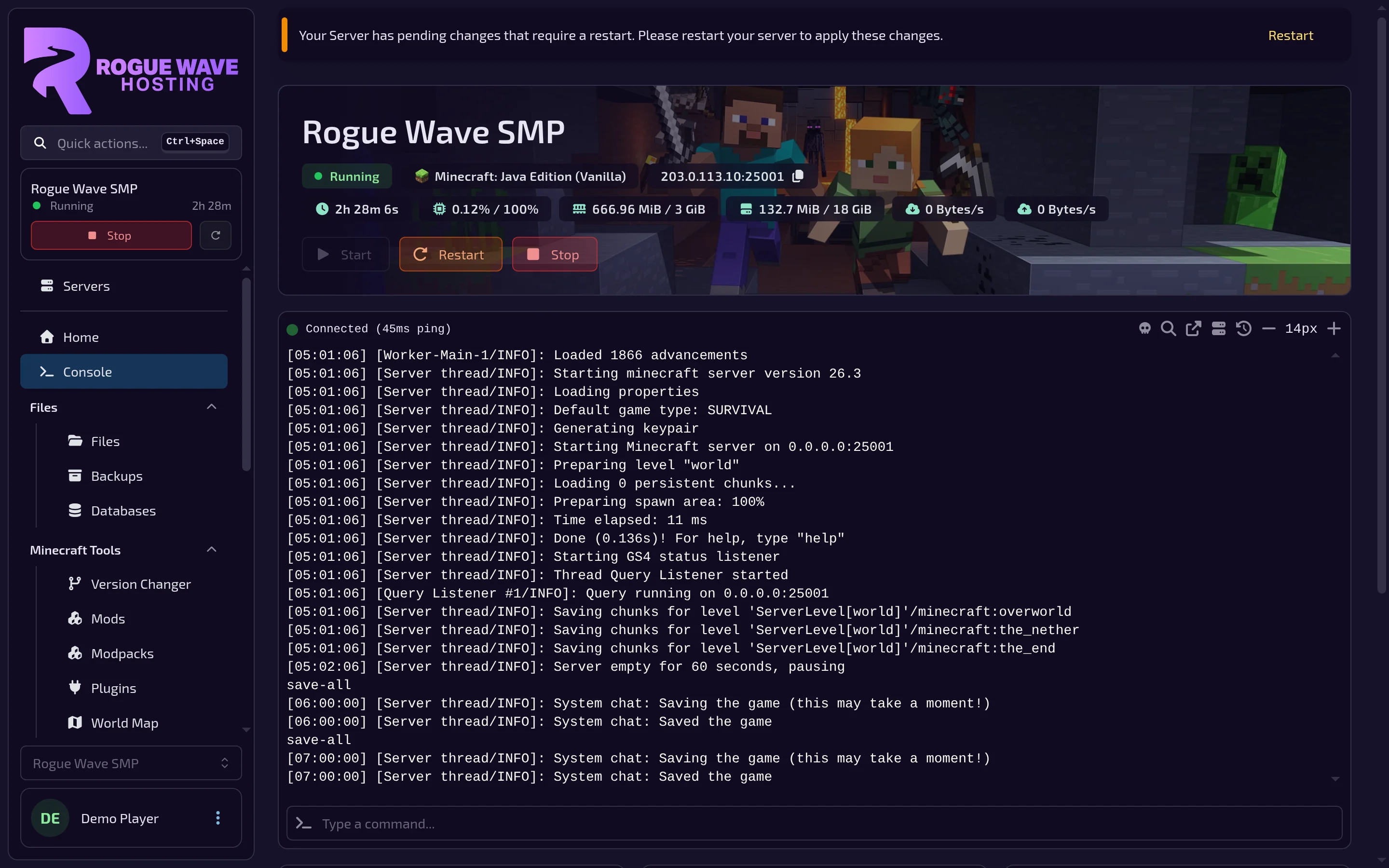
Across the top banner of the Console page, you can check your server’s health at a glance:
- Status pill — Displays
Running,Starting,Stopping, orOffline. - Egg badge — Shows the game or server software currently installed (for example,
Minecraft: Java Edition (Vanilla)). - Connection address pill — Click the address pill (for example,
203.0.113.10:25001) to copy your server’sIP:Portstraight to your clipboard. - Live resource counters — Real-time metrics for Uptime, CPU %, Memory (used vs. allocated), Disk (used vs. plan limit), and Network In / Out throughput.
- Pending changes banner — Whenever a startup setting, JVM flag, or split allocation changes while the server is online, an amber banner appears at the top with a one-click Restart button.
Using Power Controls Safely
You can control server power from the main header buttons or the persistent mini-controls in the left sidebar:
| Button | What It Does | When to Use It |
|---|---|---|
| Start | Boots the server container and runs your configured startup command. | Bringing an offline server online. |
| Restart | Gracefully stops the server, saves world state, and starts it back up. | Applying new mods, plugins, config edits, or startup flags. |
| Stop | Sends the graceful stop command so the server flushes world chunks and player data to disk before exiting. | Maintenance, taking clean offline backups, or shutting down. |
| Kill (skull icon in console toolbar) | Immediately force-terminates the server process without waiting for a clean save. | Emergency only—when a crashed or deadlocked server refuses to respond to Stop. |
Sending Commands & Using the Console Toolbar
- Run server commands — Click the
Type a command...bar at the bottom of the terminal, enter any console command (without a leading/in Minecraft—for example,op PlayerName,save-all, orwhitelist add PlayerName), and press Enter. - Check connection health — The green indicator at the top-left of the terminal (
Connected (45ms ping)) confirms your browser has an active WebSocket stream to the server. - Console toolbar (top-right of terminal) — Search log lines, pop out or expand the terminal view, toggle timestamps/command history, adjust terminal font size (
- 14px +), or trigger emergency kill if the server hangs. - Quick Actions (
Ctrl+Space) — PressCtrl+Space(or click Quick actions… in the top-left sidebar) from any page in the panel to jump instantly to files, backups, schedules, or another server without hunting through menus.
Next Steps
- Automate routine restarts and hourly
save-allcommands with Setting Up Automated Schedules. - Review who sent a console command or triggered a restart using Viewing Activity Logs.
- Share console access safely with moderators via Adding Subusers & Permissions.