



Managing Files & Connecting via SFTP
How to edit configs in the web file manager, recover files from Trash, connect with FileZilla or WinSCP over SFTP port 2022, and configure server settings on the Rogue Wave Hosting panel.
On this page 6
Whether you are tweaking server.properties in your browser or uploading a multi-gigabyte world folder from your PC, the Rogue Wave Hosting panel pairs a full-featured Web File Manager with direct SFTP access on port 2022.
Using the Web File Manager
Open your server in the Game Panel and click Files → Files in the left sidebar.
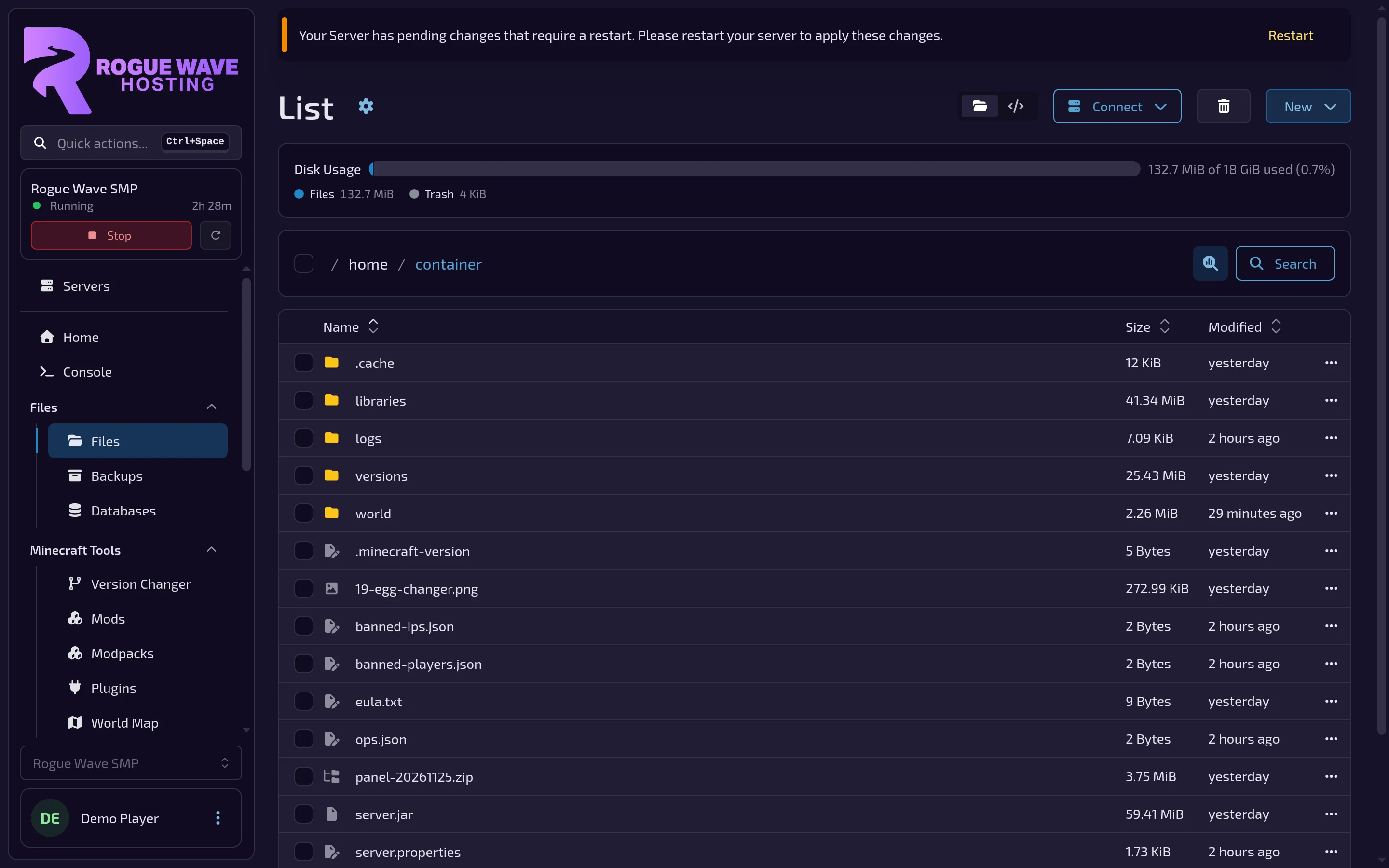
Key tools at the top of the Files page:
- Disk Usage bar — Breaks down space used by active Files vs. Trash against your total plan storage.
- View toggle (folder / code icons) — Switch between standard list browsing and the built-in browser editor view for fast config editing.
- Connect — Opens your SFTP Details modal with exact connection credentials.
- Trash — Browse deleted files and restore accidental deletions before retention cleanup runs.
- New — Create a new file, create a directory, upload files from your browser, or pull a file from a URL.
- Disk analyzer & Search — Inspect which folders consume the most storage or search filenames across
/home/container. - Row actions (
...) — Rename, move, copy, archive/extract.zipand.tar.gzfiles, change permissions, download, or delete individual items.
Finding Your SFTP Connection Details
-
Click Connect on the Files page
From Files → Files, click Connect in the top-right toolbar and open SFTP Details.
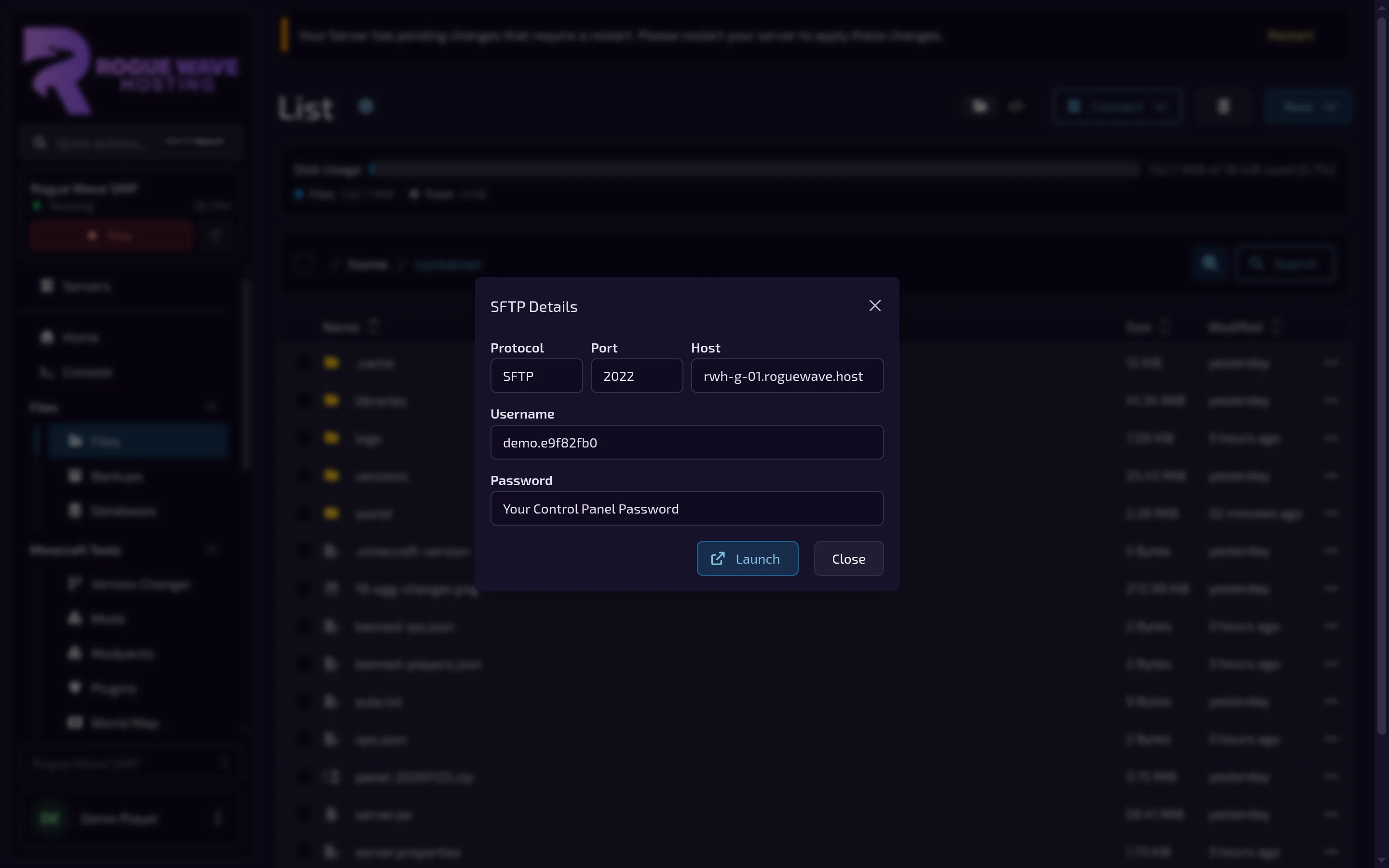
The SFTP Details modal displaying Protocol (SFTP), Port (2022), Host (rwh-g-01.roguewave.host), Username, and the one-click Launch button. -
Copy your credentials
- Protocol —
SFTP(SSH File Transfer Protocol—never plain FTP) - Host — Your node hostname (for example,
rwh-g-01.roguewave.host) - Port —
2022 - Username — Shown in the modal (for example,
demo.e9f82fb0) - Password — Your Control Panel Password (or an SSH key added under your panel account settings)
If your operating system has an SFTP client registered to
sftp://links, click Launch to open it automatically. - Protocol —
Connecting with FileZilla or WinSCP
FileZilla (Windows, macOS, Linux)
-
Open Site Manager or Quickconnect
Open FileZilla and use the Quickconnect bar at the top (or File → Site Manager → New site with Protocol: SFTP - SSH File Transfer Protocol).
-
Enter your panel SFTP details
- Host:
sftp://rwh-g-01.roguewave.host(orrwh-g-01.roguewave.hostin Site Manager with Protocol set to SFTP) - Username: Your SFTP username from SFTP Details (for example,
demo.e9f82fb0) - Password: Your Rogue Wave Hosting panel password
- Port:
2022
- Host:
-
Connect and trust the host key
Click Quickconnect (or Connect). Accept the server’s SSH host key prompt on first connection, then drag and drop files between your PC (left pane) and your server (right pane).
WinSCP (Windows)
-
Create a new SFTP session
Launch WinSCP and in the Login dialog set File protocol to SFTP.
-
Fill in host, port, and login
- Host name:
rwh-g-01.roguewave.host(use the exact hostname shown in your SFTP Details modal) - Port number:
2022 - User name: Your SFTP username (for example,
demo.e9f82fb0) - Password: Your Control Panel password (or click Advanced → SSH → Authentication to select your private key if you use SSH key auth)
- Host name:
-
Click Login
Click Login (or Save first to keep a bookmark) and accept the host key prompt when connecting for the first time.
Server Settings, Trash Retention & Reinstall
Click Settings in the left sidebar to manage core container options tied to your files and uptime:
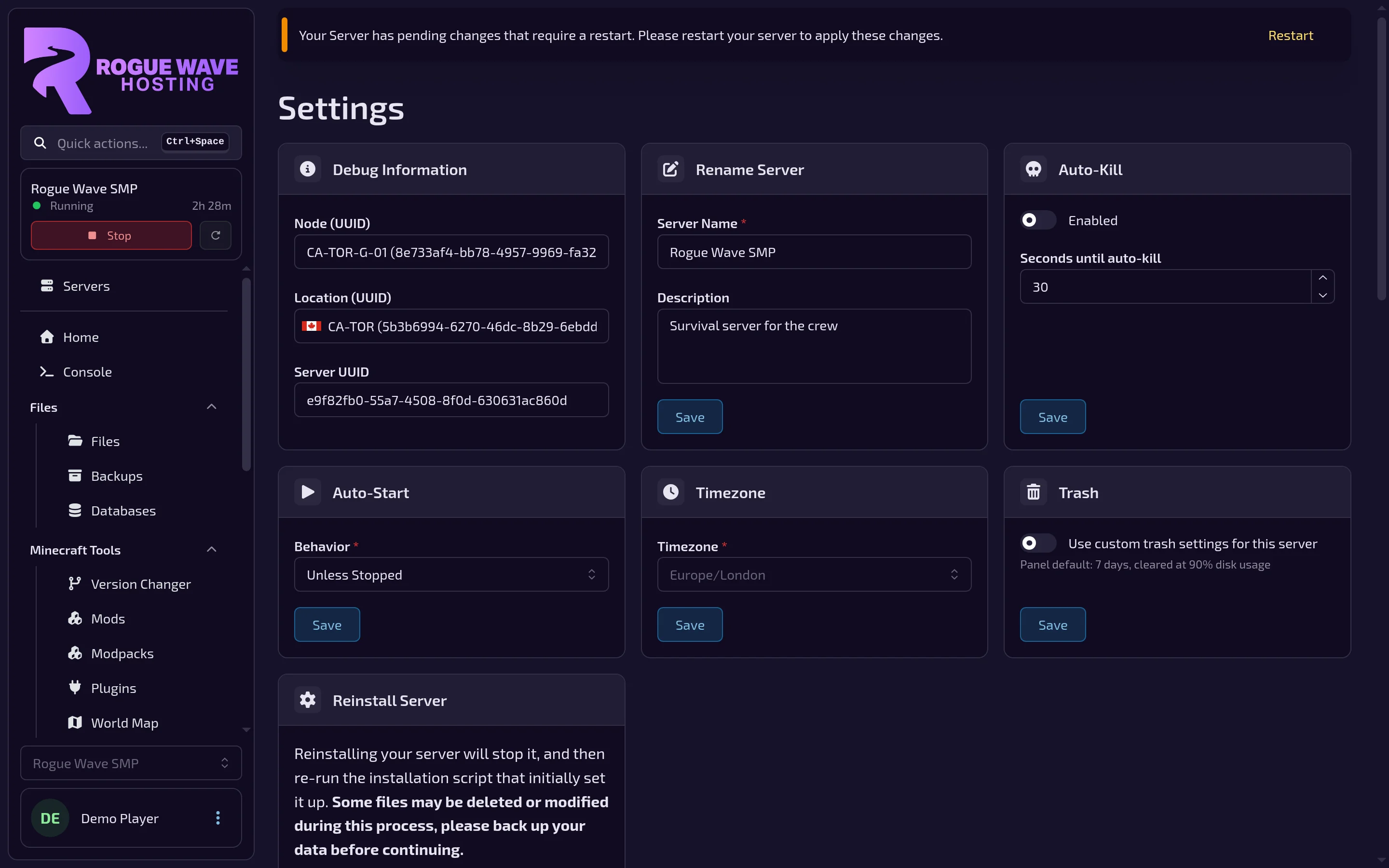
| Setting Card | What It Controls |
|---|---|
| Debug Information | Displays your Node (UUID), Location (UUID), and Server UUID—handy to paste when opening a support ticket. |
| Rename Server | Update your server’s display name and description shown in the sidebar and server list. |
| Auto-Kill | Automatically force-terminates a hanging server if it hasn’t stopped within your chosen timeout (for example, 30 seconds). |
| Auto-Start | Choose startup behavior after node maintenance (for example, Unless Stopped keeps running servers coming back online automatically). |
| Timezone | Sets the timezone used by server logs and Automated Schedules. |
| Trash | Override the panel default trash policy (7 days, cleared at 90% disk usage) with custom retention rules for this server. |
| Reinstall Server | Stops the server and re-runs the egg’s installation script. Always take a backup first via Using Backups, as reinstalling can modify or overwrite core files. |