Minecraft: Java Edition
Sandbox · Mojang
Installing Minecraft Modpacks
How to search, filter, and install Modrinth and CurseForge modpacks on your Minecraft Java server from the Rogue Wave Hosting game panel.
On this page 4
The built-in Modpacks installer lets you browse and install over 13,500 server-compatible modpacks directly from Modrinth and CurseForge—without hunting for server ZIPs, manually installing a mod loader, or uploading hundreds of mods over SFTP.
Finding a Modpack in the Panel
-
Open Minecraft Tools → Modpacks
Open your Minecraft server in the Game Panel and click Minecraft Tools → Modpacks in the left sidebar.
-
Choose a platform and filter results
At the top of the Modpacks page, switch between Modrinth and CurseForge, then narrow down the catalog using the search bar, sort menu (Downloads, etc.), and filter controls:
- Loader — Filter by Forge, NeoForge, Fabric, or Quilt.
- Version — Match a specific Minecraft version (for example,
1.20.1or1.21.1). - Category — Narrow by genre such as Adventure, Combat, Lightweight, Optimization, or Multiplayer.
- Match this server — Limit results to packs matching your server’s current loader and Minecraft version.
- Hide client-only packs — Keep this enabled so client-only performance or shader packs that cannot run as a dedicated server stay hidden.
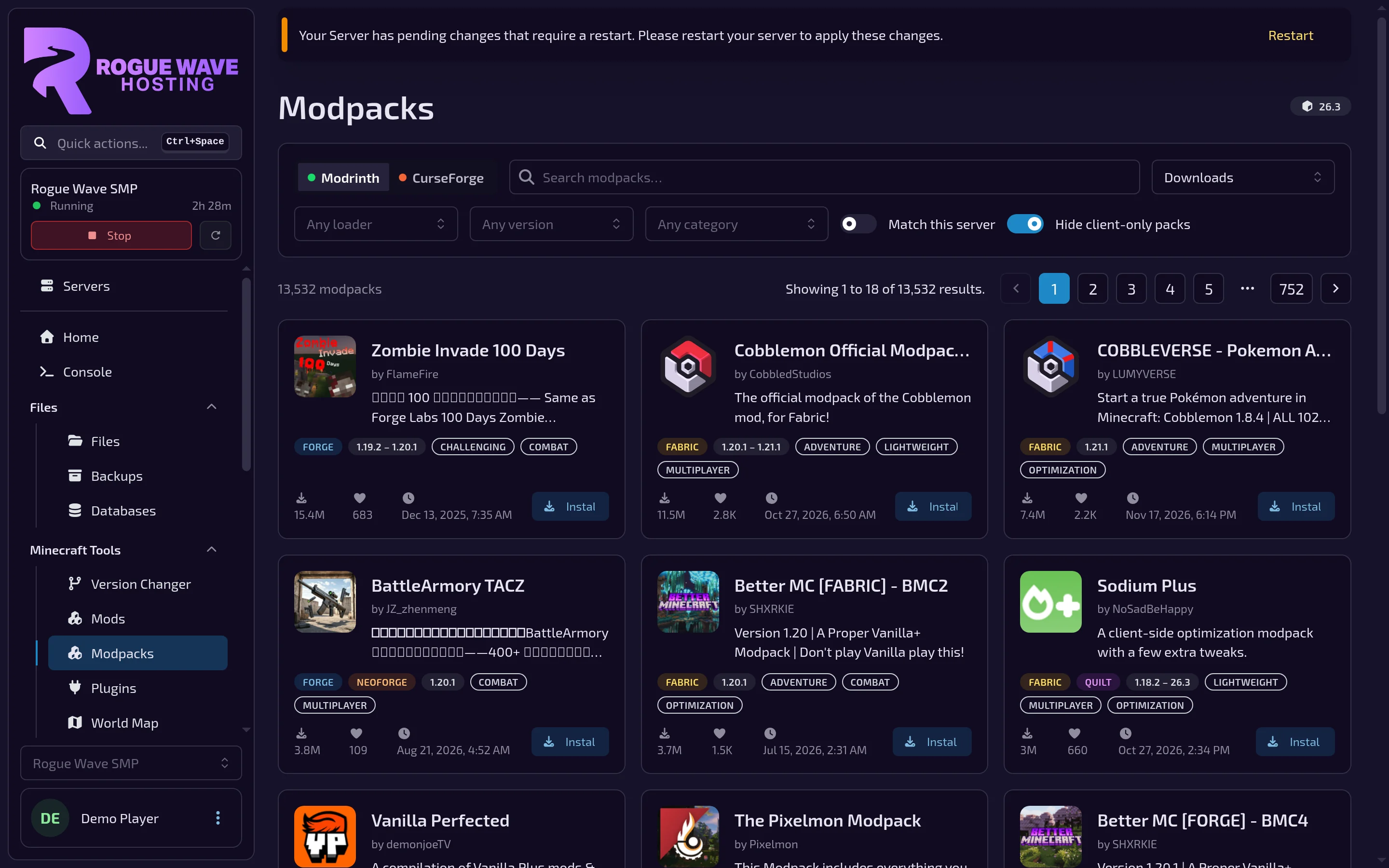
The Modpacks browser showing Modrinth and CurseForge toggles, loader/version/category filters, Match this server, and Hide client-only packs.
Configuring & Installing the Modpack
-
Click Install on your chosen modpack
Click Install on any pack card to open the installation modal. Review each setting carefully before confirming:
- Mod loader — Pick the loader supported by the pack (for example,
Forge,NeoForge, orFabric). - Minecraft version — Choose the game version you want to run.
- Modpack version — Select the exact release build (latest stable release is selected by default).
- Install mode — Choose Keep worlds & settings or Clean install (see comparison below).
- Java version (docker image) — The panel automatically detects the required runtime for the chosen Minecraft version and highlights the recommended option (for example,
Java 17 (recommended)for Minecraft 1.20.1 orJava 21for 1.20.5+). - I accept the Minecraft EULA — Check this box to accept Mojang’s End User License Agreement so the server can boot right away.
If the modpack targets a different Minecraft version than your server currently runs, an amber notice warns you before installation (for example,
The server changes from Minecraft 26.3 to 1.20.1.).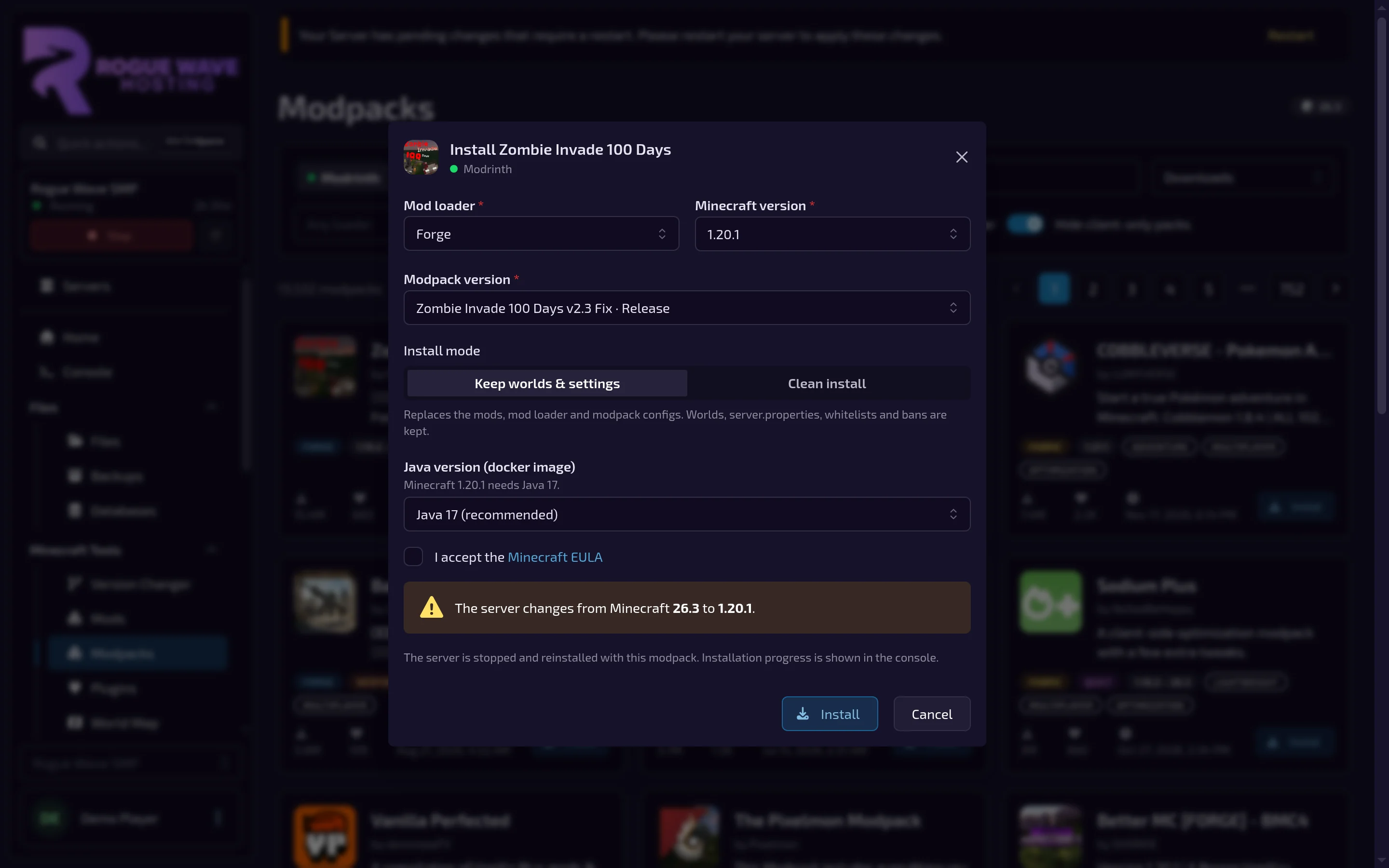
Configuring loader, Minecraft version, install mode, recommended Java Docker image, and EULA acceptance in the modpack install modal. - Mod loader — Pick the loader supported by the pack (for example,
-
Start the server and watch the console
Click Install. The panel stops the server, installs the mod loader and modpack files, and streams live progress in the Console. Once installation finishes, start your server from Console & Power Controls and wait for
Done (...)! For help, type "help".
Keep Worlds & Settings vs. Clean Install
Choosing the right Install mode prevents accidental world loss and leftover mod conflicts:
| Install Mode | What It Replaces | What It Keeps | Best Used For |
|---|---|---|---|
| Keep worlds & settings | Mods, mod loader files, and modpack configs | World folders, server.properties, whitelists, ops, and bans |
Updating an existing modpack to a newer release on the same Minecraft version |
| Clean install | Wipes existing server files and installs the modpack from scratch | Nothing (fresh world and configs generated on boot) | Switching to a completely different modpack, changing Minecraft versions, or starting a fresh season |
After Installing Your Modpack
- Match client and server versions — Every player joining your server must install the exact same modpack and version using the Modrinth App or CurseForge launcher.
- Apply tuned JVM flags — Heavy modpacks benefit noticeably from tuned garbage collection. Open Minecraft Tools → Startup Flags and select Modded G1GC (Large Modpacks); see Optimizing Minecraft Startup Flags.
- Add extra server-side mods — Want to drop in performance or utility mods on top of a pack? Browse compatible additions in Installing Minecraft Mods.
- Running a custom pack not on Modrinth or CurseForge? — Upload the pack’s server files over SFTP using Managing Files & Connecting via SFTP and set the matching loader in Changing Minecraft Server Versions.