

Managing Databases
How to create, inspect credentials for, browse, lock, and delete MySQL, PostgreSQL, and MongoDB databases on the Rogue Wave Hosting panel.
On this page 3
Many game server plugins, mods, and bots—such as LuckPerms, CoreProtect, or Discord bridges—use a database to store data cleanly and reliably. On the Rogue Wave Hosting panel, you can create MySQL, PostgreSQL, or MongoDB databases in seconds.
Creating a Database
-
Open the Databases page
Open your server in the Game Panel and click Files → Databases in the left sidebar.
The counter under the page title shows how many databases you’ve created out of your plan’s limit (for example,
2 of 3 maximum databases created).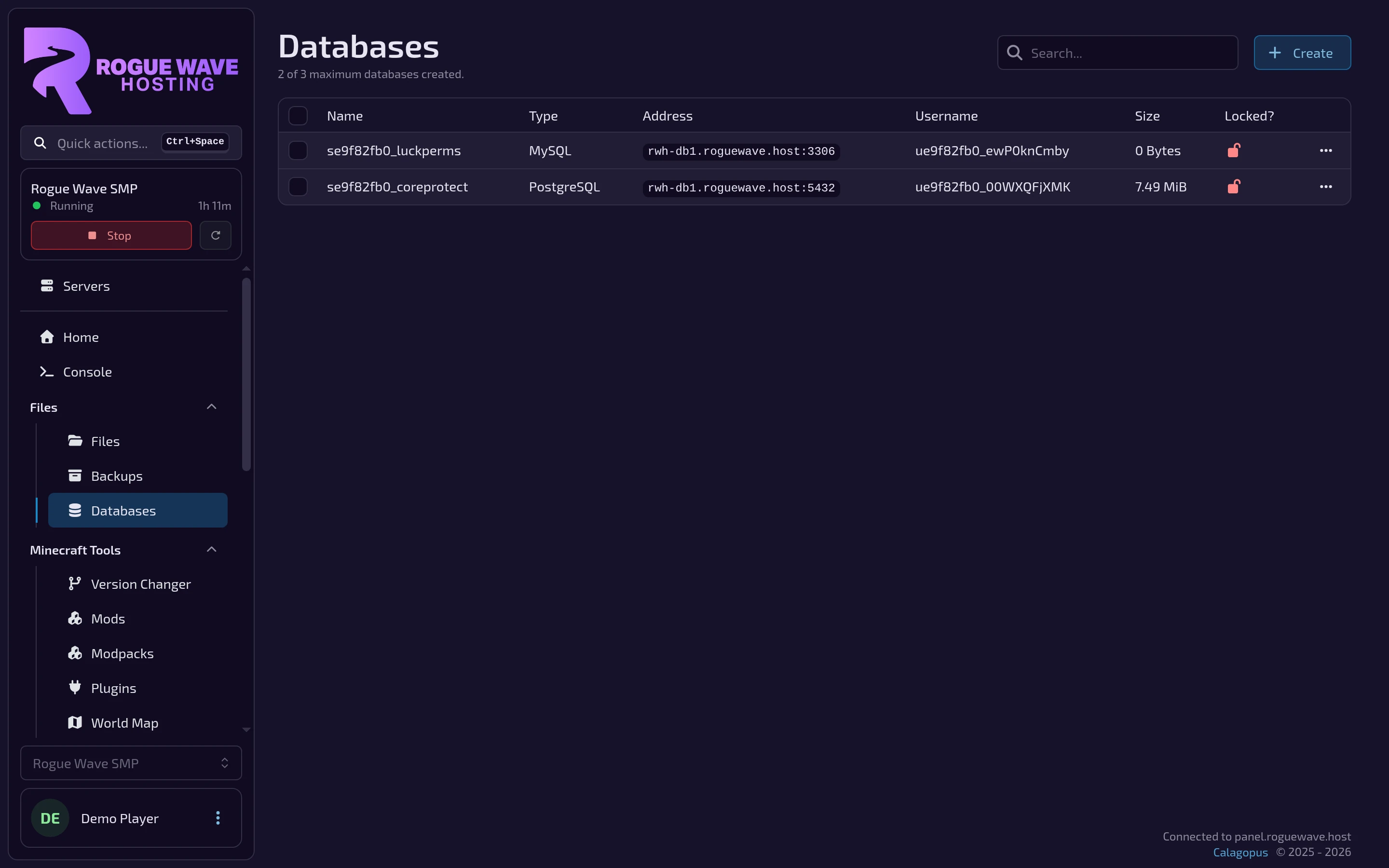
The Databases page showing existing databases, their addresses, usernames, sizes, lock status, and the Create button. -
Click Create and pick your database engine
Click + Create in the top-right corner and fill out the modal:
- Database Name — Up to 31 characters using letters, digits, and underscores only (for example,
luckpermsorcoreprotect). The panel automatically prefixes it with your server ID so it stays unique. - Database Host — Choose the engine your plugin or app requires:
- rwh-db1 MySQL (port
3306) — Standard choice for most Minecraft plugins and web tools. - rwh-db1 PostgreSQL (port
5432) — For plugins, tools, or apps built for Postgres. - rwh-db1 MongoDB (port
27017) — For document-based plugins or Discord bots.
- rwh-db1 MySQL (port
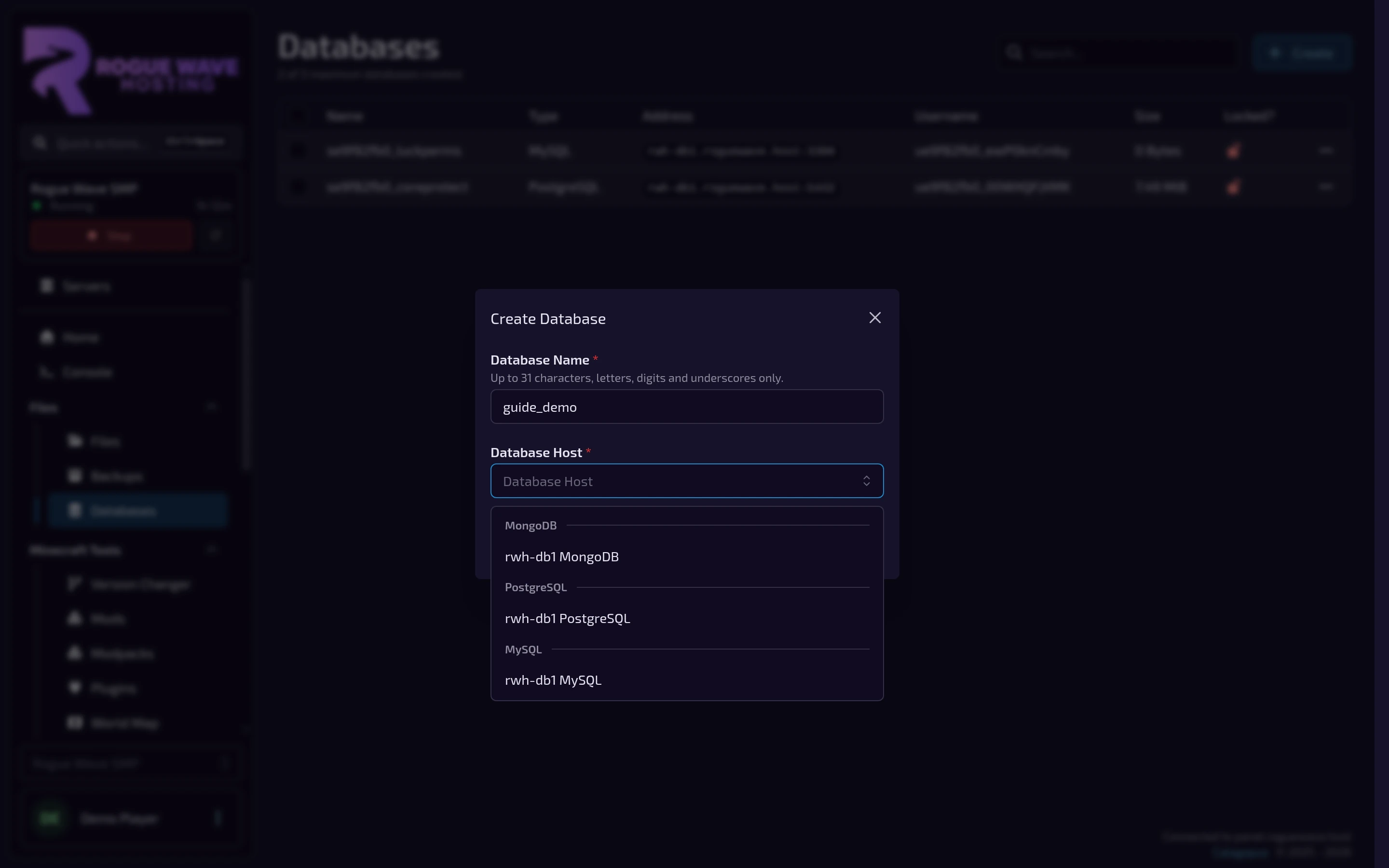
Entering a database name and selecting MySQL, PostgreSQL, or MongoDB in the Create Database modal. Click Create. Your new database appears in the table right away.
- Database Name — Up to 31 characters using letters, digits, and underscores only (for example,
Viewing Connection Details & Rotating Passwords
To connect a plugin, mod, or external SQL client (such as HeidiSQL, DBeaver, or TablePlus) to your database:
-
Open the row actions menu
Click the
...button on the right side of the database row to open its actions menu.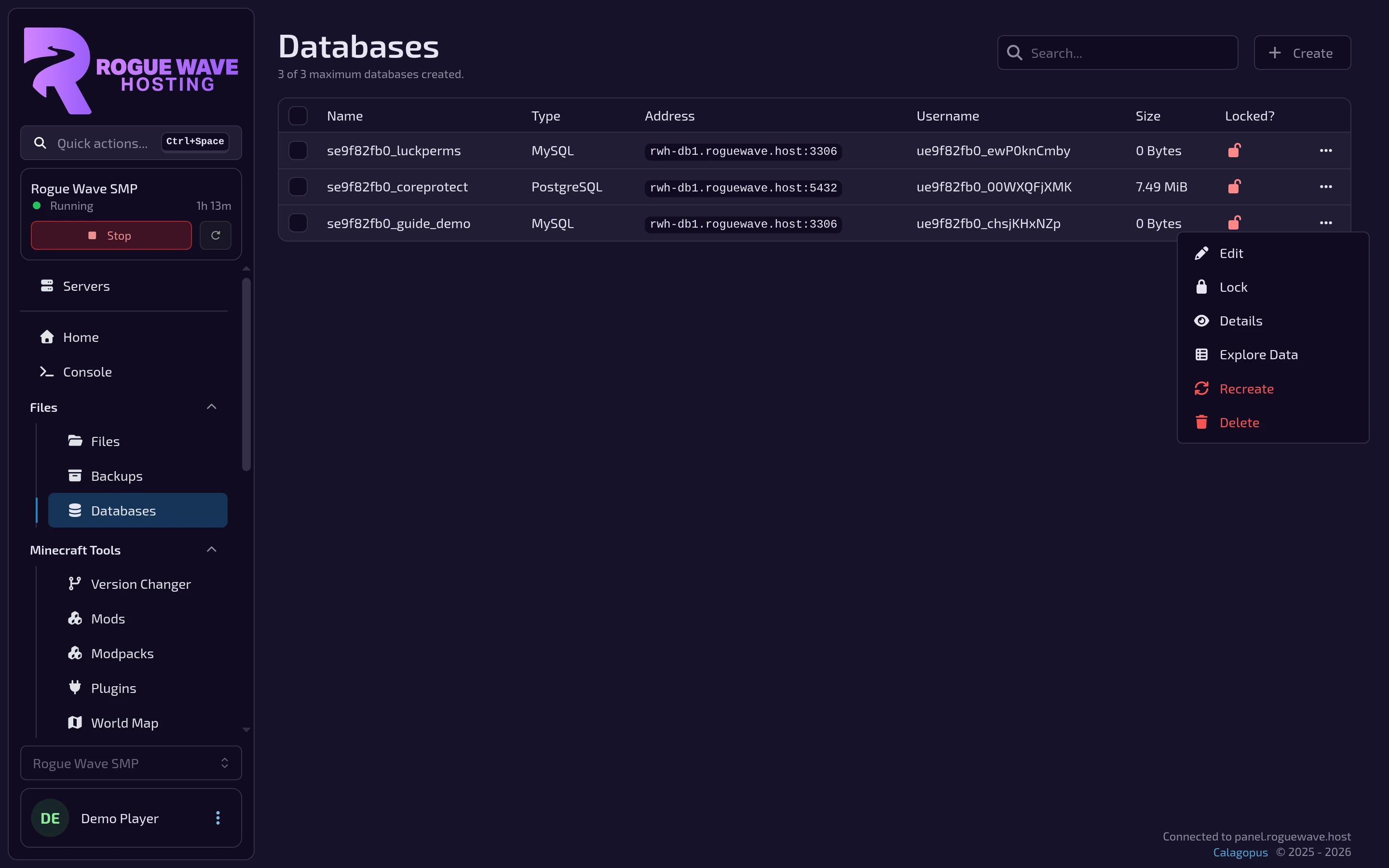
The database row actions menu: Edit, Lock, Details, Explore Data, Recreate, and Delete. -
Copy your credentials from Details
Click Details to open Database connection details. From here you can copy:
- Database Name — Full prefixed name (for example,
se9f82fb0_guide_demo) - Host — Hostname and port (for example,
rwh-db1.roguewave.host:3306) - Username and Password
- JDBC Connection String — Ready to paste into Java plugins or tools that accept a full JDBC URL
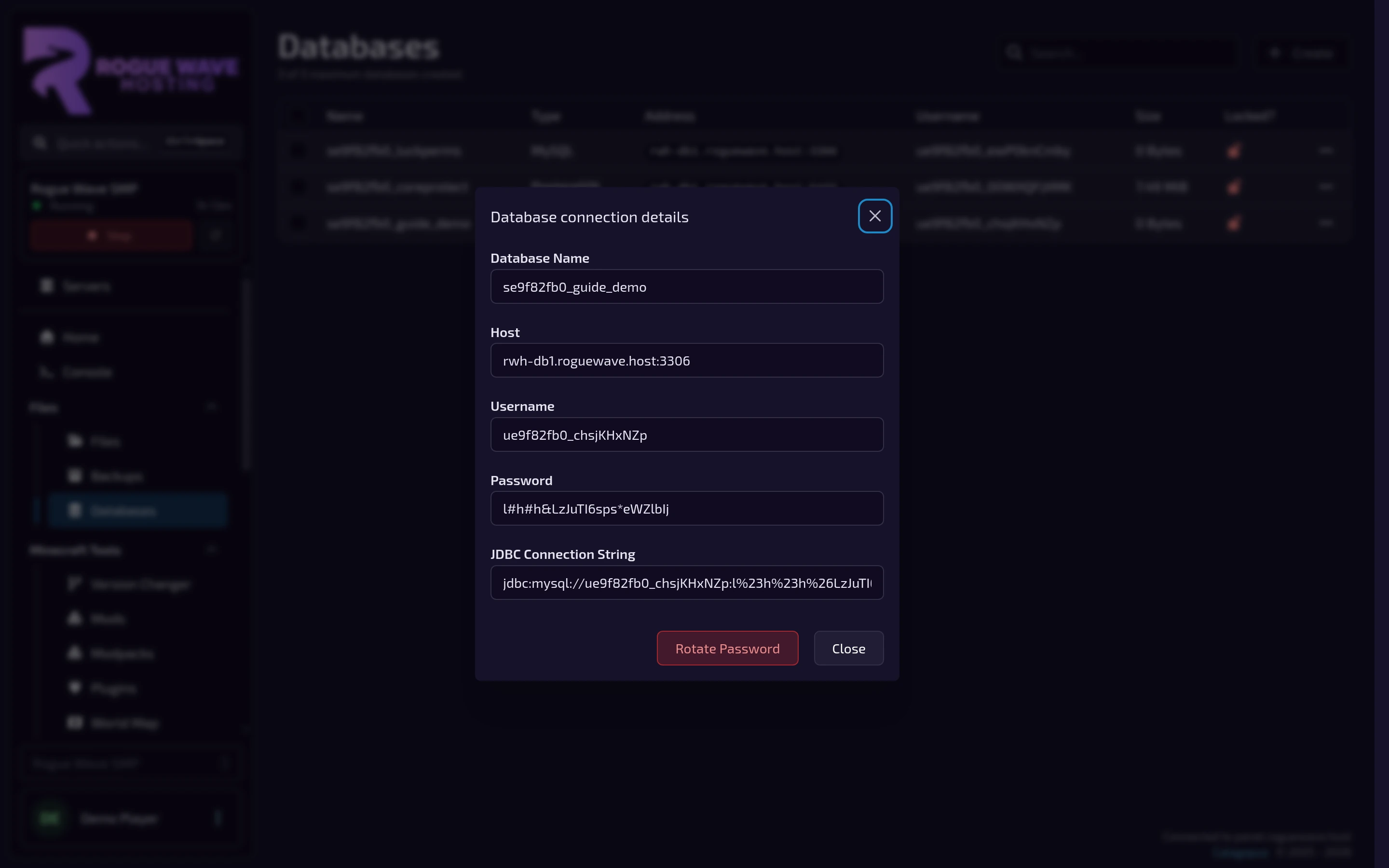
Database connection details modal with credentials, JDBC string, and the Rotate Password button. - Database Name — Full prefixed name (for example,
Managing Existing Databases
Every option in the ... row menu does the following:
| Action | What it does |
|---|---|
| Edit | Rename or update settings for the database. |
| Lock / Unlock | Protects the database from accidental deletion. Locked databases show a closed lock icon in the Locked? column until unlocked. |
| Details | Shows the host, username, password, JDBC connection string, and Rotate Password button. |
| Explore Data | Opens the panel’s built-in database browser so you can inspect tables and records directly in your browser. |
| Recreate | Drops and recreates the database cleanly from scratch while keeping its slot. |
| Delete | Permanently deletes the database and all of its data after confirming its full name. |