Minecraft: Java Edition
Sandbox · Mojang
Changing Minecraft Server Versions
How to switch between Vanilla, Paper, Purpur, Folia, Spigot, Fabric, Forge, NeoForge, and Velocity builds using Version Changer in the Rogue Wave Hosting panel.
On this page 3
Version Changer lets you install or switch between any supported Minecraft server software, version, and build right inside the panel—no manually downloading server JARs, running BuildTools, or editing startup commands.
Choosing the Right Server Software
Open your server in the Game Panel and click Minecraft Tools → Version Changer in the left sidebar. The Currently Installed banner at the top shows your active software and build, with an Other versions button to change versions within your current platform.
Use the category tabs—All, Plugins & vanilla, Modded, Proxies, and Limbo—or the Search server types… bar to pick the right platform for your server:
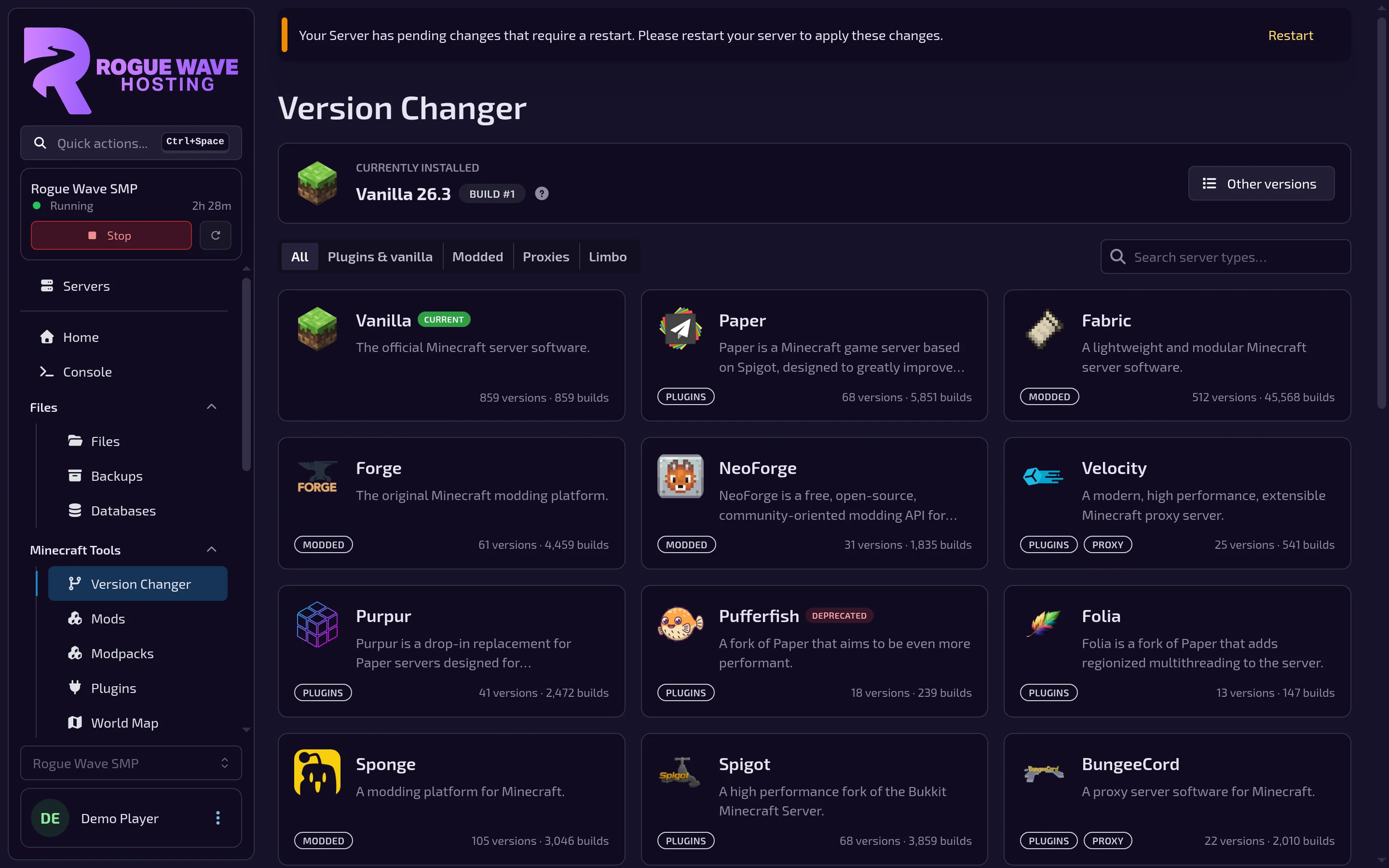
| Category | Software | Best For |
|---|---|---|
| Plugins & vanilla | Vanilla | 100% official Mojang server mechanics with no plugins or mods |
| Plugins & vanilla | Paper (recommended) | Survival, SMP, and community servers that want plugins plus major performance optimizations |
| Plugins & vanilla | Purpur | Paper-compatible servers wanting extra gameplay customization toggles |
| Plugins & vanilla | Folia | High-player-count worlds needing multithreaded region ticking (requires Folia-specific plugins) |
| Plugins & vanilla | Spigot | Legacy plugins that specifically target Spigot instead of Paper |
| Modded | Fabric | Lightweight modern modding, Vanilla+ servers, and rapid updates to new Minecraft releases |
| Modded | NeoForge | Modern Forge-ecosystem mods on Minecraft 1.20.4 and newer |
| Modded | Forge | Classic modded servers and 1.20.1 / legacy mod ecosystems |
| Modded | Sponge | Servers running Sponge plugins/mods |
| Proxies | Velocity (recommended) | Linking multiple split or backend Minecraft servers behind one lobby address |
| Proxies | BungeeCord | Legacy proxy networks requiring BungeeCord-only plugins |
Switching Software or Versions
-
Back up your current server
Open Files → Backups and create a named backup (for example,
Before Paper 1.21.4) so you can revert if anything changes unexpectedly. -
Select your server software and build
In Minecraft Tools → Version Changer:
- Click Other versions in the Currently Installed banner if you only want a different version or newer build of your current software.
- Click a software card (such as Paper, Fabric, Forge, NeoForge, or Velocity) to switch platforms, then pick your target Minecraft version and build.
-
Match your Java version under Startup
When switching across major Minecraft versions, open Startup in the left sidebar and make sure the Docker Image (Java) matches your chosen Minecraft version:
Minecraft Version Required Java Version 1.20.5 and newer (including 1.21.x and 26.x) Java 21 (or newer runtime recommended by the build) 1.18 – 1.20.4 Java 17 1.17 Java 16 / Java 17 1.16.5 and older (including 1.12.2) Java 8 (or Java 11 for select 1.16.5 builds) -
Start the server and verify in Console
Start or restart your server from Console & Power Controls and verify that the new software boots cleanly without
UnsupportedClassVersionErroror plugin/mod mismatch errors.
What to Do Next
- Switched to Paper, Purpur, Spigot, Folia, or Velocity? Install plugins right away with Installing Minecraft Plugins.
- Switched to Fabric, Forge, or NeoForge? Browse mods in Installing Minecraft Mods or install a full pack via Installing Minecraft Modpacks.
- Running a Velocity proxy network? Carve your plan into a proxy + backend servers using Using the Server Splitter.
- Optimize garbage collection for your new platform in Optimizing Minecraft Startup Flags.