


Minecraft: Java Edition
Sandbox · Mojang
Installing Minecraft Plugins
How to switch to Paper, Purpur, Spigot, Folia, or Velocity and install plugins from Modrinth, CurseForge, and Hangar in the Rogue Wave Hosting panel.
On this page 3
The Plugins page under Minecraft Tools lets you search, install, update, and manage server plugins directly from Modrinth, CurseForge, and Hangar—without downloading JARs to your PC or uploading them manually.
Switching to a Plugin-Capable Server First
Official Vanilla Minecraft cannot load plugins. If your server is still running Vanilla, opening Minecraft Tools → Plugins shows what the panel detected from your logs, files, and egg, along with a Set manually… override button.
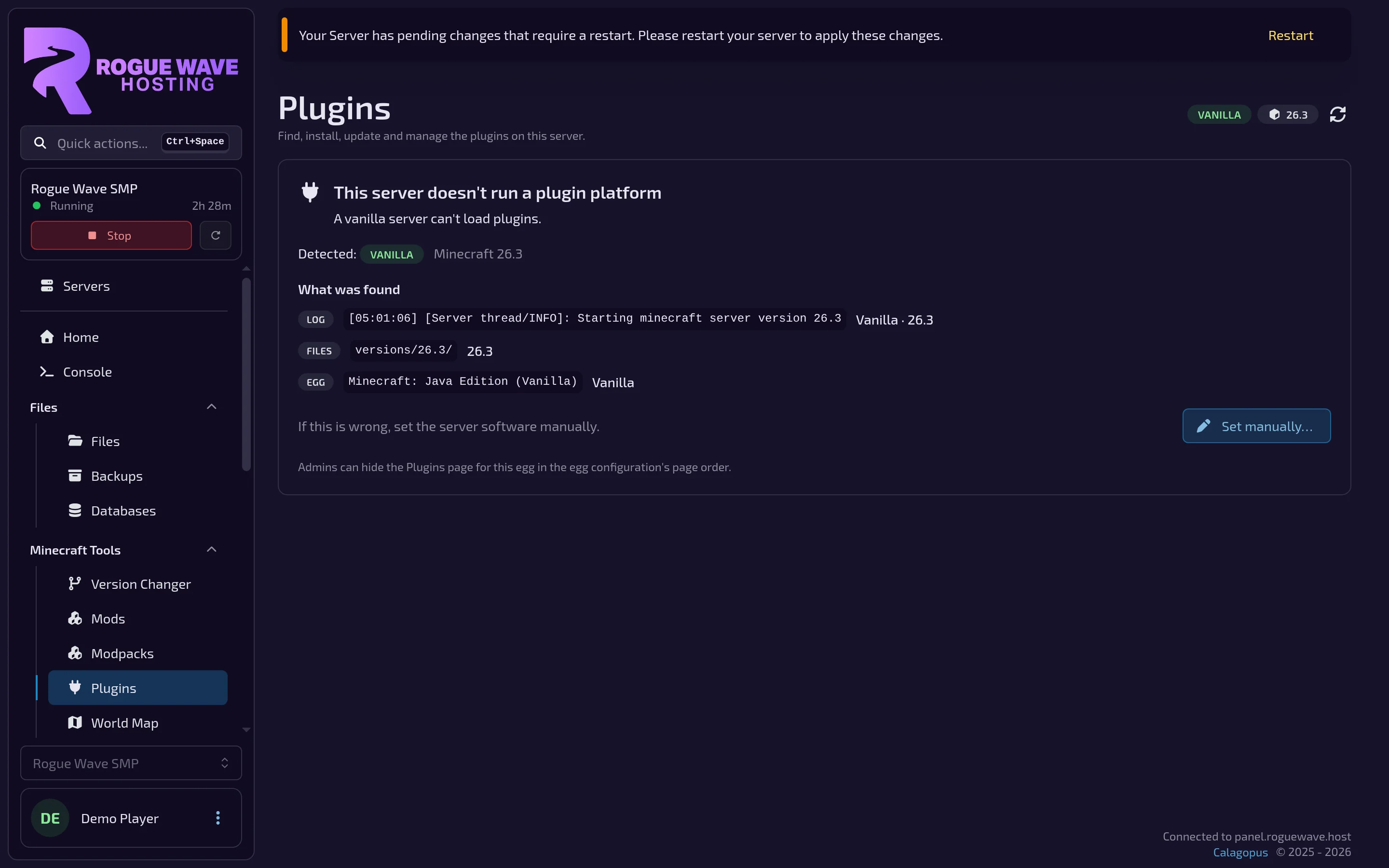
To enable plugins:
-
Switch to Paper, Purpur, Spigot, Folia, or Velocity
Open Minecraft Tools → Version Changer and install a plugin platform:
- Paper (recommended for most servers) — High-performance drop-in replacement for Spigot with broad plugin compatibility and active security fixes.
- Purpur — Paper fork adding extra gameplay and configuration toggles.
- Folia — Multithreaded Paper fork for very large servers (only supports Folia-compatible plugins).
- Spigot — Classic Bukkit/Spigot platform.
- Velocity — Modern high-performance proxy for linking multiple backend servers together.
See Changing Minecraft Server Versions for the step-by-step walkthrough.
-
Override platform detection if needed
If you uploaded a custom fork JAR and the panel doesn’t recognize it automatically, click Set manually… on the Plugins page (or the refresh/override icon in the top-right) to choose your exact platform and Minecraft version.
Finding & Installing Plugins
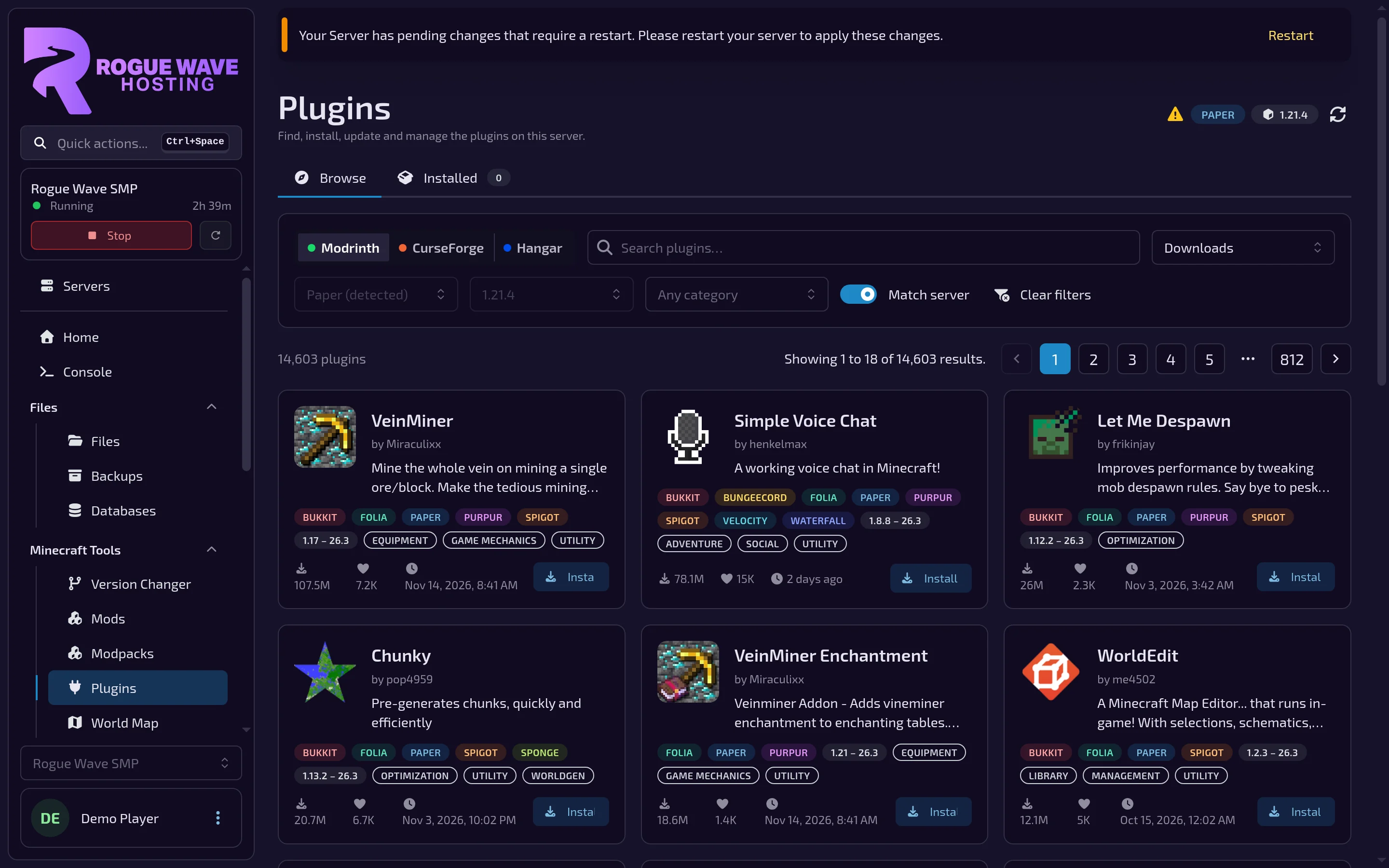
Once a plugin platform like Paper is active, open Minecraft Tools → Plugins. The top-right badges confirm your detected platform and version (for example, PAPER and 1.21.4), giving you access to 14,600+ plugins across Modrinth, CurseForge, and Hangar.
-
Search and filter
Pick a source (Modrinth, CurseForge, or Hangar), type a plugin name (such as
LuckPerms,WorldEdit,Chunky,Simple Voice Chat, orEssentialsX), and keep Match server enabled so every result supports your server software and Minecraft version. -
Click Install
Click Install on the plugin card. The panel downloads the matching JAR straight into your
plugins/directory. -
Restart your server
Open Console and click Restart to load the plugin and generate its configuration folder under
plugins/<PluginName>/. Avoid using/reloadin production—many plugins leak memory or corrupt data on hot reloads.
Databases, Extra Ports & Plugin Best Practices
- Connect database-backed plugins cleanly — Plugins such as LuckPerms, CoreProtect, Plan, and multi-server economy suites run fastest with a real MySQL database. Create a free off-disk MySQL database in seconds using Managing Databases.
- Assign extra ports for voice chat or web maps — Plugins like Simple Voice Chat, BlueMap, Dynmap, or GeyserMC need their own dedicated port. Self-assign an extra port in Network → Allocations and paste that port number into the plugin’s config file—see Managing Ports & Firewall Rules.
- Update and prune from the Installed tab — Switch to the Installed tab to review installed plugins, apply updates, or delete unused JARs. Always take a snapshot with Using Backups before major plugin upgrades.
- Tune JVM flags for Paper & Purpur — Apply Aikar’s Flags (G1GC) or Generational ZGC (Java 21+) in Optimizing Minecraft Startup Flags for smoother TPS and fewer GC pauses.